Archival Processing
Introduction to Arranging Archives
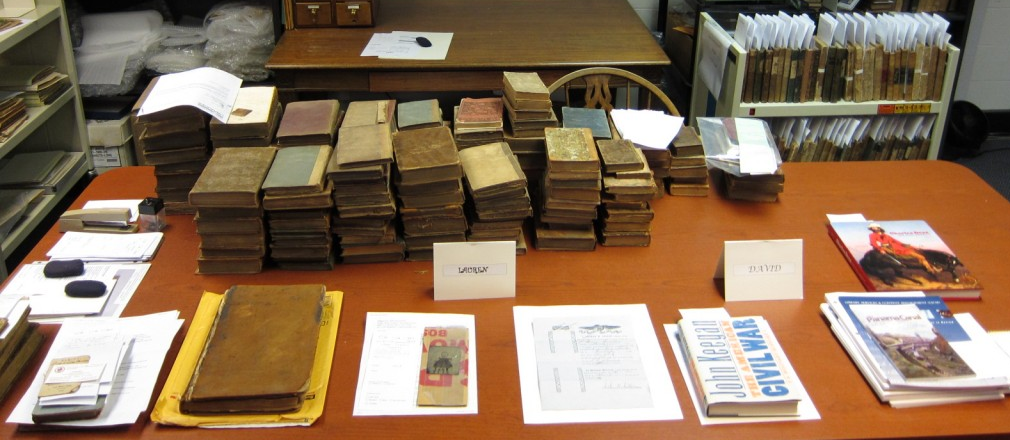
Collect all pertinent documents and artifacts created by the C.A. Area Committees and C.A. Area Convention Committee. Correspond with all Area C.A. Committees and your local C.A. Fellowship to acquire items from early members and trusted servants. Develop a presence for archival items to be displayed at District, Area and Regional Conventions.
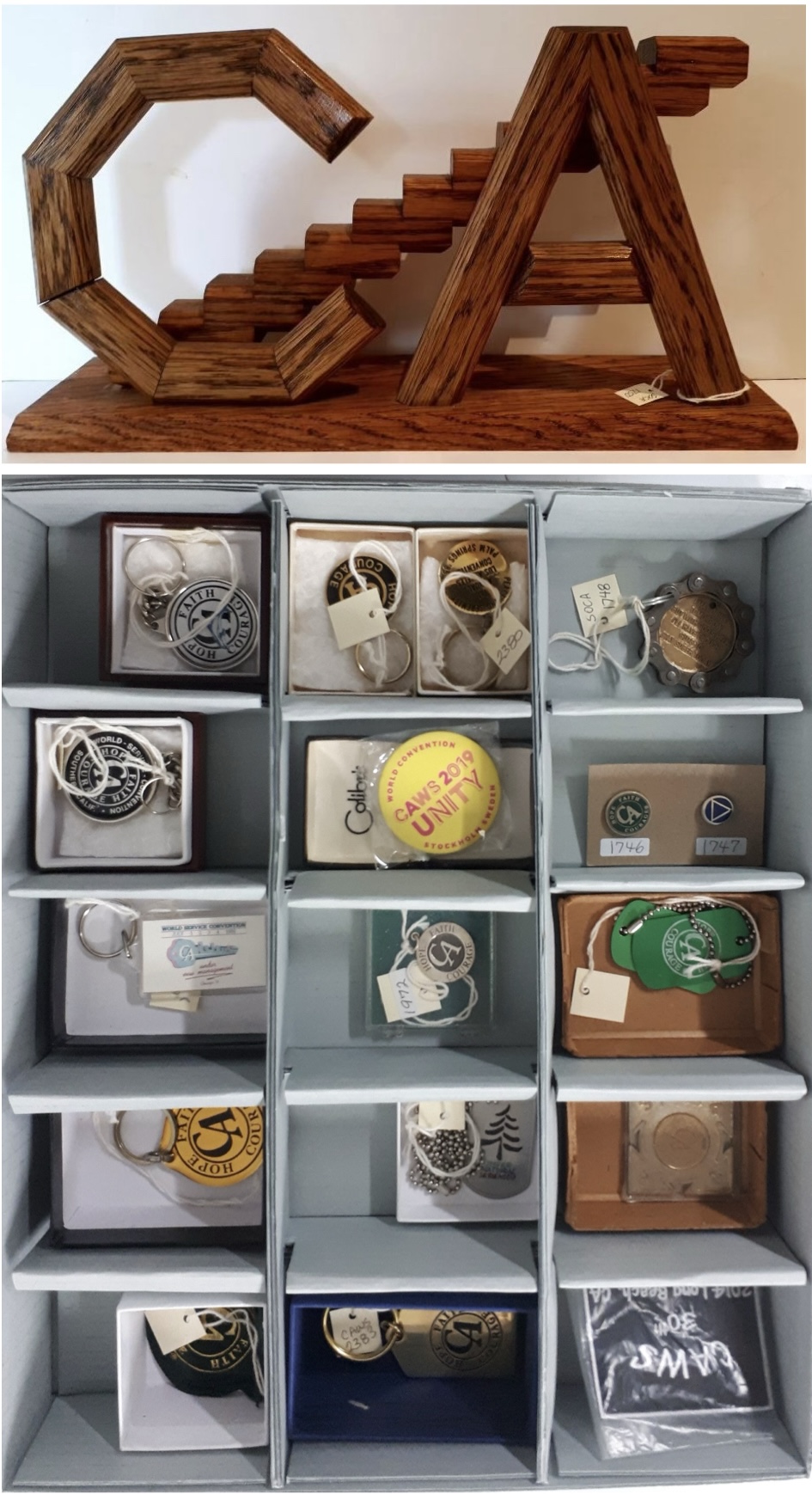 Building an Archive: Collecting Analog Items
- Audio (A): PSA’s, Convention Speaker Tapes & CD’s, Member interviews
- Books (B): HFC I & II, Big Books, etc.
- Ceramics (C): Coffee mugs, teacups, glassware, plates.
- Chips (CH): Plastic, metal and commemorative C.A. tokens.
- Large Format (LF): Steps, Traditions & Concepts banners, and all other large display banners, posters, etc.
- Miscellaneous (M): Things that do not fall into any of the other categories.
- Objects (O): God boxes, umbrellas, mouse pads, artwork, jewelry, vases, golf balls & tees, key chains, buttons, plaques, etc.
- Pulp (P): All paper documentation, including:
- Area Minutes, Policies, Procedures, Bylaws
- Various Area Committee Minutes
- Area Incorporation Documents
- Board of Director’s Minutes
- Meeting Directories
- Area Convention Manuals and Minutes
- Event Registrations and Program Pamphlets
- Event Ephemera (tickets, flyers, etc.)
- Textiles (T): All fabric items – T-shirts, jackets, hoodies, sweatshirts, sweat pants, shorts, boxers, polo, baseball, soccer, shirts, ball caps, quilts, cloth banners, bandanas, towels, etc.
Building an Archive: Collecting Digital Files
The Importance of Digital Archives
Data Management
Digital (D): Electronic Files: .pdf, .docs, .png, .tif, .ai
Building an Archive: Collecting Digital Items
Folder File structure: Hierarchical file structures can add additional organization to your files. As with file naming, use whatever makes most sense for your data.
- Top Level Folder – CAWS Archives
- Sub-Folder – CAWS Conference Minutes
- Sub-Folder – 2019 WS Conference Minutes
- Document – 2019-08-28 Conference Day 1 Minutes.pdf
- Sub-Folder – 2019 WS Conference Minutes
- Sub Folder – WSOB Minutes
- Sub Folder – 2019 WSOB Minutes
- Document – 2019-01-16 WSOB Minutes Approved.pdf
Suggested Uniform Naming Conventions
The following uniform naming conventions have been suggested to provide guidance on consistent production of naming files to ensure the ability of fellowship members to retrieve said documents.
Element Description Examples Date Date associated with the document (generally date of document creation or date of meeting memorialized) YYYY-MM-DD, YYYYMMDD
Service Body Committee, Board, Area/District, etc. associated with document LCF, CALA, Archives Title or Project Name A brief description of what is being documented Pamphlet X, Conference Call Type of File If applicable (to help distinguish agendas and minutes for the same date, for example) Agenda Minutes, Report, Guidelines Status Status of the document (general) Draft, Final, Approved Conference Approval Status More specific status if document is to be presented at Conference SR13 draft, SR14 draft, WSC approved Version/Revision Changes made to the original document are tracked - Distinct version each time the document is changed
- Who made the change
v3-KS File Extension What type of document is being saved .doc, .docx, .pdf, .wav, .mp3, .png, .tif/.tiff Uniform Examples:
- 2020-11-14 SOCA Area Minutes approved.pdf
- 20201114 LCF Pamphlet X Point 6 draft v3-KS.docx
- 2005-08 WSC Finance Committee Report.docx (if the day is not given, use only 6 digits)
- 2021 PI Guidelines WSC approved.docx
Version Control:
- Why changes to a document were made can be explained outside of the title.
- References can also be provided within the document to explain any problems that were fixed, or amplifications introduced, by the changes made.
- It can be easy for files to accidentally be overwritten or deleted when working collaboratively, therefore it is important to remember to save version files for working documents.
Change Control:
- The approval of documents based on their relevancy and suitability before they are issued to relevant parties/committees.
- Reviewing and updating documents when it is required (if it is required). This can also include re-approvals.
- Changes and revisions are documented within the status of each controlled document.
- Having available the most relevant or recent version of the document in question when it is needed for usage by fellowship members.
- Making documents legible and named appropriately for ease of identification.
- Having documents ready for distribution within the fellowship.
- Avoiding unauthorized use of documents which are controlled.
Miscellaneous Notes:
- Placing the date at the beginning of the file name aids in computer sorting of the documents by date
- Ideally descriptions will be short as to not overburden the reader with too much information to sort through to find the necessary file
- If using autosave create a copy with the current date before revising a file
- Best practices for file naming are important to ensure time is not wasted searching for the desired file and that files are not lost without the possibility of retrieval
- File naming conventions when used properly allow for an “audit trail” (a record of changes made to a particular file) so that each file can be traced and retrieved
- Automatically generated file names (such as those from a digital camera for images) ideally will be replaced with a file name that meets the conventions outlined above to ensure retrieval is more seamless
Establishing fellowship-wide standards may not be practical, As such, the naming conventions and related practices set forth above are only suggestions. Committees or other service bodies may choose to implement any or all of them. Before implementation, it is suggested that existing practices be carefully reviewed and that a realistic timeline for implementation of new standards be established. If a service body wishes to retain its own practices, hopefully this document will be of assistance in establishing and maintaining internal uniformity and consistency.
SOME NOTES ON DIGITAL FILES
IMAGE RESOLUTION (72 dpi for web and 300 dpi or higher resolution for print quality)
LOSSLESS (EX. RAW) Preserves or captures all the files’ original data. All photos, art pieces, and text are NOT lost. Lossless files can be compressed and still preserve all the files’ data to its original state.
LOSSY (EX. JPEG) Loses the data and quality of an image file, which is irreversible. The Lossy files will get rid of unnecessary data. Making the file smaller and, in the process, reducing the quality of the image.
RASTER (BITMAP) IMAGE FILES (FINITE)
Raster (or bitmap) images are described by an array or map of bits within a rectangular grid of pixels or dots.
JPEG/JPG
JPEG is a raster format and is the most used online file format because of the flexibility of compression. If you need an image to download quickly, JPEG is a perfect choice. Using the method of lossy compression for photos, email graphics, and large web images. Granted, JPEG file sizes can leave a poor-quality image by an increase or decrease of an image compressed. As a result, JPEG’s are created for posting images online and are not recommended for printing.
Use JPEG when:
- You want to send a quick preview image. JPEGs offer the most flexibility with raster editing and compression, making them ideal for web images.
- Downloading a file quickly.
- Working with online photos.
Avoid using JPEG when:
- Needing transparency. JEPGs don’t have transparency channels and must have a solid colored background. GIF or PNG files are best for transparencies.
- You need a layered, editable image. JPEGs are a flat image format, which means all the edits are saved into one layered image and cannot be undone. Use EPS, AI, or PSD files for multi-layered editable images.
- For sharp edges. JPEGs are raster files that are made up of pixels producing blurred edges.
GIF (Graphics Interchange Format)
GIFs are a series of soundless animated videos or images that loop continuously together and doesn’t require anyone to press play.
For instance, GIF files are a web image format, typically used for animated graphics like ads, emails, and social media memes. They are exported in several customizable settings that reduce file size, colors, and image information.
How do you pronounce gif? The creator of GIF says “JIFF” like peanut butter, while a large part of the world calls it “GIFF” with the “GUH” sound. It’s up to you how you want to pronounce it.
Use GIF when:
- Creating web animation. GIF files can hold all of the individual image frames and timing information in one single file.
- Specifically, for online use only.
- Needing a small video file. GIFs can be compressed down tremendously for very simple icons and web graphics.
- Needing transparency videos. Can also place GIFs on any colored background.
Avoid using GIF when:
- You need a photographic-quality image. GIFs have a limit of 256 colors, while photos typically have thousands of colors. TIFF, PSD or JPG files if you need to print photos.
- Needing a layered, editable image. GIFs are flat image formats that stack images on top of each other.
- Choose a PSD file for fully editable layered images.
- Wanting a High Quality Video.
PNG (Portable Network Graphics)
PNGs are best used for online text and graphics with high-quality image sizes. They have a built-in transparency background that allows other images to be seen behind them. Also, allowing a true replication of a RAW image with reduced file size. PNGs are quickly becoming one of the most common image formats used online.
Use PNG when:
- Needing high-quality transparent web graphics. PNG images have a variable “alpha channel” that can have any degree of transparency.
- You have illustrations with limited colors. Though any image will work, PNG files are best with a small color palette, or with greater depths of True Colors, you’ll have a more vibrant image than you would with a GIF file.
- Needing a large or small file. PNG files can shrink and grow to incredible sizes—especially for simple colors, shapes, or text. This makes it the ideal image file type for web graphics.
Avoid using PNG when:
- You’re working with photos. Thanks to PNGs’ high color depth, the format can easily handle high resolution photos. However, because it is a lossless web format, file sizes tend to get too large to send to a different platform.
- You’re dealing with a print project. PNG graphics are optimized for the screen and not for print. You can use a PNG for print but it is best to use a JPEG or TIFF file for printing.
TIFF stands for Tagged Image File Format which, are large file formats with extremely high-quality raster images used with professional photography. The files; are also used as a storage container for multiple image files like JPEGs to be edited at a later date.
.
Use TIFF when:- Needing large high-quality prints. Along with RAW, TIFF files are among the highest quality graphic formats available. If your printing photos—especially at enormous sizes—use this format.
- You are making a high-quality scan (300 dpi or higher for print quality). Using TIFFs to scan your documents, photos and artwork will ensure that you have the best original file to work with.
- For storing high quality images together in one place.
Avoid using TIFF when:
- You’re working with web graphics. TIFF files are optimized for transport only, because, they are a very large file size. JPEG or PNG files are your best bet when it comes to displaying high-quality images online or printing quality images.
PSD = Photoshop Document (works with photos).
PSD is a proprietary layered image format that stands for Photoshop Document. These are original design files created in Photoshop that are fully editable with many layers and image adjustments. PSDs are primarily used to create and edit raster images, making them flexible for many different projects. as a result, PSD files can be exported into any number of image file formats, including all the raster formats listed above.
Use PSD when:
- It’s time to retouch photos. Needing to color correct a photo or remove part of a photo? Photoshop is your tool!
- You need to edit artwork for digital or print. That could be a photo, painting, drawing, or anything else. Photoshop is the right tool to make sure every line, shadow and texture is in place.
- You want digital images for the web like social media images, banner ads, email headers, videos etc. Creating these images in Photoshop will ensure they are the right size and optimized for the web.
- Having to create a website or app mockup. Layers make it easy to move UI elements around.
Avoid using PSD when:
- You need to post a photo online or send a preview to a client. The web is JPEG friendly. Convert PSD files to JPEG or PDF first to make sure your audience can see your image quickly.
- You’re ready to print your photos. Many printers won’t accept the PSD format, so first convert to PDF.
VECTOR FILES (INFINITE):
Vector images are described by lines, shapes, and other graphic image components stored in a format that incorporates geometric formulas for rendering the image elements. A Vector file means they can be enlarged or shrunk down to any size, over and over for whatever project you have, and they will always come out looking great.
A RAW image contains the unprocessed data captured by a digital camera or scanner’s sensor. These files are of the highest quality that you can get in any image format. Typically, images are processed and then converted and compressed into another format (e.g. JPEG or TIFF). Raw images store the unprocessed and processed data in two separate files. So you’re left with the highest quality image possible that you can then edit with either Adobe Lightroom or Adobe Photoshop.
There are dozens and dozens of raw formats, but some of the typical formats are CRW (Canon), NEF (Nikon), and DNG (Adobe).
Use RAW when:
- You are shooting and editing photos. Make sure your camera is set to RAW so you can capture the most versatile image. Then, use a compatible photo-editing application to adjust your image lighting.
Avoid using RAW when:
- You’re working with web graphics. RAW is built for photo editing. When you’re ready to present your photos for the web, convert them to JPEG.
- You’re ready to print your photos. Many printers won’t accept raw formats, so first convert to JPEG or TIFF.
PDF (Portable Document Format) is an image file format used to display documents and graphics. No matter the device, PDF files have a powerful vector graphic foundation. They can display everything from digital graphics to spreadsheets while keeping the quality intact. PDF files are often the standard file format requested by printers to be sent into production. Both Adobe Photoshop and Adobe Illustrator can export straight to PDFs. Great for sharing with clients.
.
Use PDF when:- You’re ready to print. As we mentioned, many printers prefer PDF as their primary delivery format because it is so universal. Check with your printer providers to see how they’d like you to prepare your file.
- You want to display documents on the web. You wouldn’t use a PDF for a single icon or logo, but it’s great for posters, flyers, magazines and booklets. PDFs will keep your entire design in one package, making it easy to view, download, or print.
Avoid using PDF when:
- You need to edit your design. PDFs are great containers but use other applications for creating content. You can edit raster images with Photoshop and vector graphics with Illustrator. After that, You can combine those into a PDF for easy viewing.
Records Management 101
- Sub Folder – 2019 WSOB Minutes
- Sub-Folder – CAWS Conference Minutes